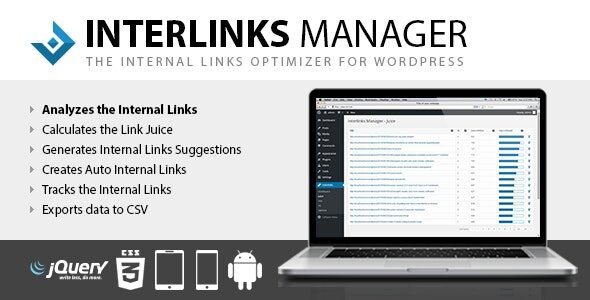
Internal linking is one of the most consistently underused SEO tactics on WordPress sites. Most site owners know it matters, but manually going back through hundreds of posts to add relevant links to newer content is the kind of task that never makes it to the top of the priority list. Interlinks Manager is the plugin that takes that entire job off your plate. It automates the process of placing internal links across your content, tracks how your link equity is distributed, and gives you real data on how your internal linking structure is actually performing.
Available on CodeCanyon, Interlinks Manager has built a strong reputation among SEO-focused WordPress users who want more than just keyword-to-URL mapping. It combines automation with analytics in a way that very few internal linking plugins bother to do, making it a genuinely useful tool rather than a simple set-and-forget shortcut.
What Is Interlinks Manager
Interlinks Manager is a premium WordPress plugin that automatically inserts internal links into your post content based on keyword rules you define. You tell the plugin which keywords should link to which pages or posts, set limits on how often each link appears, and the plugin handles the rest across your entire content library without modifying the original post database entries.
Beyond the automation, Interlinks Manager includes a link juice calculator, a statistics dashboard, and tools for analyzing which pages are receiving the most internal link authority and which ones are being neglected. For anyone serious about on-page SEO and site architecture, it fills a gap that most general SEO plugins leave wide open.
Key Features
| Feature | Description |
|---|---|
| Automatic Internal Linking | Define keyword and URL pairs and the plugin automatically inserts links across all matching content |
| Link Juice Calculator | Visualize how internal link authority flows across your site and identify pages with weak internal support |
| Interlinks Statistics | Track total links inserted, clicks received, and link distribution across posts and pages |
| Max Links Per Post | Set a global or per-rule limit on how many automatic links appear in any single piece of content |
| Max Links Per Keyword | Control how many times the same keyword triggers a link across your entire site |
| Case Sensitive Matching | Choose whether keyword matching treats uppercase and lowercase as different triggers |
| Nofollow Option | Apply nofollow attributes to specific automatic links individually or globally |
| Open in New Tab | Set individual link rules to open in a new browser tab without touching post content |
| Ignore Specific Posts | Exclude individual posts, pages, or custom post types from automatic link insertion |
| Priority System | Assign priority levels to link rules so more important links take precedence when limits are reached |
Link Rule Configuration Options
| Option | What It Controls |
|---|---|
| Target Keyword | The word or phrase in your content that will be converted into a hyperlink |
| Destination URL | The internal page or post the keyword will link to |
| Max Links Per Post | The maximum number of times this specific rule fires within a single post |
| Max Links on Site | The total number of times this rule fires across your entire website |
| Link Title | The title attribute added to the anchor tag for accessibility and SEO |
| Nofollow | Whether the inserted link carries a nofollow attribute |
| New Window | Whether the link opens in a new browser tab or the same window |
| Active Status | Toggle individual rules on or off without deleting them |
| Rule Priority | Numeric priority that determines which rules take precedence when link limits are reached |
| Excluding Posts | A list of specific post IDs where this rule should never fire |
Who Should Use Interlinks Manager
SEO professionals and content marketers managing large WordPress sites with hundreds or thousands of posts will get the most immediate value from Interlinks Manager. Going back through an entire content archive to manually add internal links to relevant older posts is simply not realistic at scale, and Interlinks Manager handles that retroactively across the entire site the moment you define your rules.
Bloggers and niche site owners building topical authority will find the link juice calculator particularly useful. Understanding which pages are well-supported by internal links and which ones are sitting in isolation helps you make smarter decisions about where to focus your content and linking efforts, which directly affects how search engines evaluate the depth of your coverage on a topic.
Agencies and freelancers doing SEO work for clients will appreciate having a plugin that shows measurable internal linking data rather than just applying changes blindly. The statistics dashboard gives you something concrete to show clients, and the ability to export and analyze link distribution means you can demonstrate the structural improvements you have made to a site’s architecture over time.
eCommerce site owners running WooCommerce stores with large product catalogs can use Interlinks Manager to automatically link product-related keywords in blog posts and category descriptions to the relevant product pages, supporting both user navigation and search engine crawlability without building those links manually one page at a time.
Interlinks Manager vs Other WordPress Internal Linking Plugins
| Feature | Interlinks Manager | Link Whisper Pro | Internal Link Juicer | Rank Math Internal Links | AIOSEO Internal Links |
|---|---|---|---|---|---|
| Automatic Link Insertion | Yes | Yes | Yes | Yes | Yes |
| Link Juice Calculator | Yes | No | No | No | No |
| Click Statistics | Yes | Yes | No | No | No |
| Max Links Per Post Control | Yes | Yes | Yes | Limited | Limited |
| Nofollow Per Rule | Yes | Yes | Yes | Yes | Yes |
| Exclude Specific Posts | Yes | Yes | Yes | Yes | Yes |
| Link Priority System | Yes | No | Yes | No | No |
| Custom Post Type Support | Yes | Yes | Yes | Yes | Yes |
| Case Sensitive Matching | Yes | No | Yes | No | No |
| One-Time Price | Yes | Yes | Yes | Bundled | Bundled |
How to Install Interlinks Manager
Download the Interlinks Manager zip file from WPDropzone. Go to your WordPress admin dashboard and navigate to Plugins, click Add New, then Upload Plugin, and choose the downloaded zip file. Click Install Now and activate the plugin once it finishes. After activation, Interlinks Manager will appear in your WordPress sidebar. Start by going to the Add New Rule section where you enter your target keyword, the destination URL, and configure your link limits and options. Once you save the rule, the plugin immediately begins inserting that link wherever the keyword appears across your published content without any further action needed.
Frequently Asked Questions
Does Interlinks Manager modify my actual post content in the database? No. Interlinks Manager inserts links dynamically at the point of rendering, meaning your original post content in the WordPress database is never touched. If you deactivate the plugin, your posts revert to their original state with no cleanup required and no leftover code embedded in your content.
Can I prevent specific posts from receiving automatic internal links? Yes. Interlinks Manager lets you exclude individual posts and pages from automatic link insertion both at the global level and at the individual rule level. You can also exclude entire custom post types if you want certain content types to remain untouched by the automation entirely.
How does the link juice calculator work? The link juice calculator analyzes your internal link structure and assigns a relative authority score to each page based on how many internal links it receives and the depth of those links from the homepage. It helps you identify pages that are well-connected within your site architecture and pages that are essentially orphaned and receiving little internal support from the rest of your content.
Does it support custom post types and WooCommerce products? Yes. Interlinks Manager works with any registered post type on your WordPress installation, including WooCommerce products, portfolio items, events, and any custom post types created by other plugins. You can create link rules that target content within specific post types and set destination URLs that point to product pages or other custom content.
Will adding too many automatic internal links hurt my SEO? This is exactly why the max links per post and max links per keyword controls exist. Search engines do not penalize reasonable internal linking, but stuffing every post with dozens of repetitive links to the same pages looks unnatural. Interlinks Manager lets you set sensible limits so your internal link profile looks like the work of a careful editor rather than an automation script running unchecked.
Is Interlinks Manager compatible with page builders like Elementor? Yes. The plugin works with content rendered through Elementor, Divi, Beaver Builder, and other major page builders. It processes content at the WordPress filter level, which means it catches text rendered through page builder shortcodes and blocks in addition to standard post content fields.
⚠️ Disclaimer: This plugin/theme is for personal use and practice only. Run a malware scan before use. For commercial use, purchase a license from the official website.